How to Upload a Product Feed for ChatGPT Shopping Campaign
If you sell products online, uploading your product feed and running a shopping campaign—like Standard Shopping or Performance Max—is arguably one of the most important moves you can make for your digital marketing strategies. Why? Because these campaigns can often drive a 2x to 3x higher return on ad spend (ROAS) compared to standard search campaigns.
Now, if you’re dipping your toes into the brand-new OpenAI Ads platform and ChatGPT’s beta advertising features, I have some exciting news: You can now upload your product feed directly into ChatGPT. (Note: As of mid-2026, the Ads Manager is available to advertisers in the US, Canada, Australia, and New Zealand, and requires a minimum catalog size of 1,000 products.)
The good news is that it’s not complicated. The bad news? It’s a bit different than the process you might be used to with Google Ads or Microsoft Advertising. But don’t worry—I'm going to walk you through exactly how to get your product feed up and running so you can launch a profitable shopping feed campaign and drive serious website traffic growth.
Why ChatGPT Shopping Campaigns Matter
Whenever a new platform launches, getting in early can give you a massive edge. Just like early adopters of other PPC campaigns saw incredibly cheap clicks, testing product feeds on ChatGPT right now could put your brand in front of high-intent buyers while competition is still relatively low.
Let's dive into the step-by-step process of getting your feed connected.
Step 1: Create a Feed in OpenAI Ads Manager
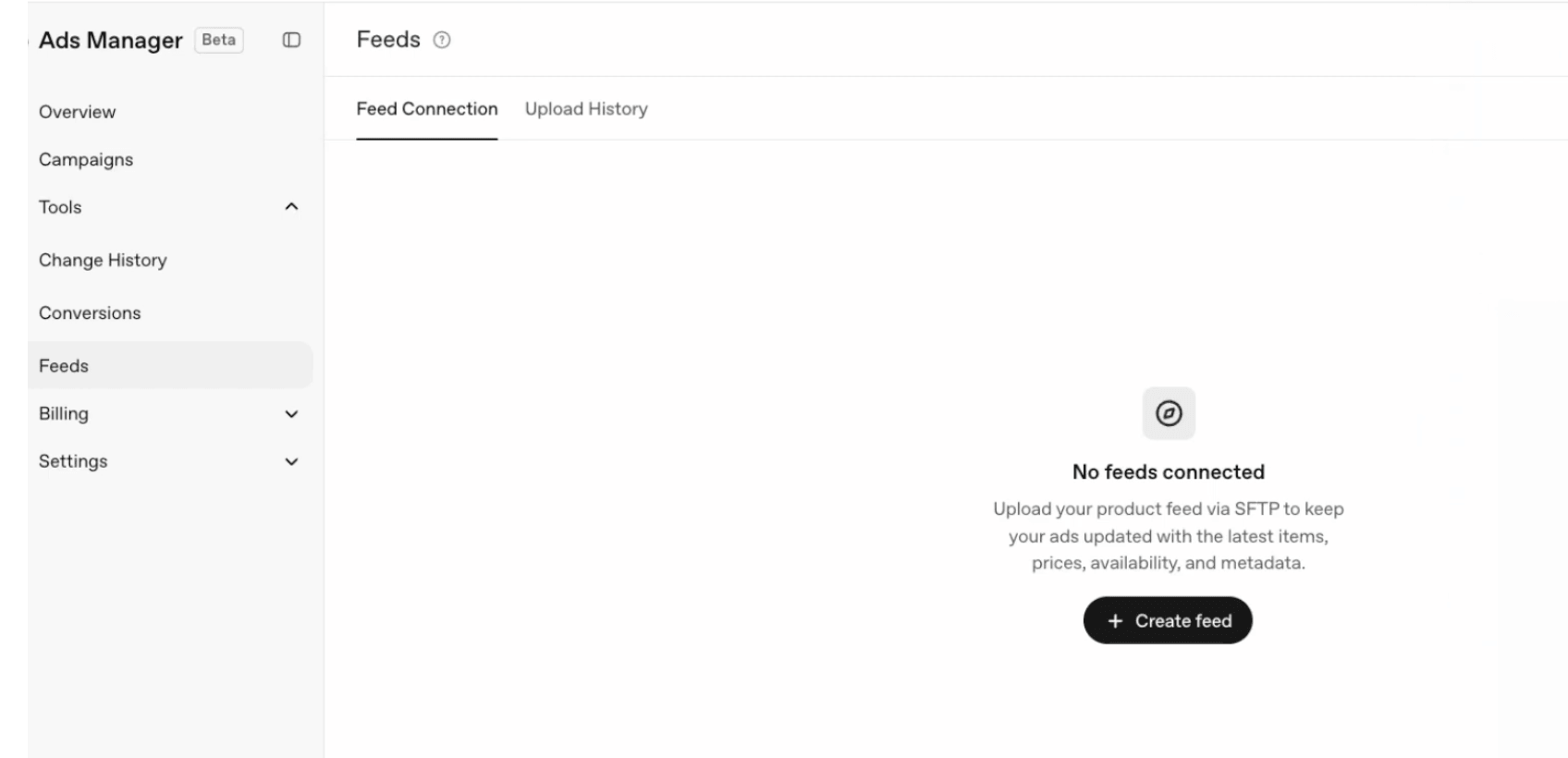
First, log into the OpenAI Ads Manager (which is currently in beta). On the left-hand side under the Tools section, you’ll see a Feeds option. Click that, and you’ll likely see a screen saying no feeds are connected.
- Click the plus sign (+) to create a new feed.
- Give it a display name (like "My Test Shopping Feed").
- Select your supported currency and hit Create.
You’ll then be greeted with what is essentially an empty shell for your shopping feed, along with some SFTP connection details.
Step 2: Connect Using an FTP Client (Like FileZilla)
Here is where things differ from your typical campaign setup. Currently, the only way to get your shopping feed into ChatGPT is by using FTP or SFTP. If you have no idea what that is, don't panic! It’s simply a way to upload files directly to a server.
You’ll need an FTP program. I personally use and recommend a free tool called FileZilla.
- Open FileZilla and create a new "Site" in your Site Manager.
- Copy the SFTP credentials from ChatGPT (Host, Username, Port).
- Choose your authentication method (password or SSH key). If using a password, generate one in ChatGPT and paste it into FileZilla.
- Save this setup so you won't have to remember it every time you update your feed.
- Hit Connect.
Once connected, you’ll see an empty directory. This is exactly where we’re going to drop your product feed file.
Step 3: Prepare Your Product Feed CSV
So, where do you get your shopping feed? If you’re already running PPC campaigns on Google, you likely have a feed in Google Merchant Center. You can simply download that CSV file, or export it directly from your e-commerce platform or third-party feed management tool.
ChatGPT accepts a few file formats, but sticking with a simple .CSV file (or a gzip-compressed CSV) works perfectly fine.
Crucial Tip:
While ChatGPT’s feed specifications are extremely similar to Google Merchant Center, they aren't identical. When uploading your Google feed, it will likely throw an error. To fix it, you need to add OpenAI's specific mandatory columns, such as target_merchant (sometimes casually referred to as Seller Name). I also strongly recommend ensuring you have the required boolean attributes is_eligible_search and is_eligible_checkout to avoid validation errors, alongside is_eligible_ads if you need to explicitly exclude specific items from your campaigns.
Step 4: Upload and Wait for Processing
Now that your CSV is prepped, go back to FileZilla. Simply drag and drop your CSV file from your desktop into that connected folder location.
Hop back into the ChatGPT Ads Manager and refresh the screen. From my experience, it takes anywhere from a few minutes to a few hours for the file to process depending on its size. You'll see the status change from "Processing" to "Uploaded." If there are any errors with specific products, OpenAI will flag them right there so you can make quick fixes.
Step 5: Build Your Shopping Feed Campaign
Assuming your products uploaded successfully, it’s time to actually build the campaign.
- Navigate to the Campaigns tab and click Create Campaign.
- Name your campaign and select Product Feed as the campaign type.
- Select the feed you just uploaded.
- Choose your objective. You can choose options like Clicks or Conversions (Conversion-optimized campaigns officially went live in early June 2026).
- Set your daily budget (the minimum is typically around $25).
- Name your Ad Group and set your Max CPC bid. Pro-tip: In almost every campaign I’ve created so far, setting a $3 CPC bid is the magic over/under number to jump from weak delivery to strong delivery.
If you only want to advertise specific items rather than your entire catalog, you can also apply filters at the Ad Group level to pinpoint those exact products. If standard filters aren't enough, you can use the ads_metadata field in your feed to organize your catalog by bidding tiers or product lines.
Step 6: Create the Ad Template
The final step is creating an Ad Template. Because this is a feed-based campaign, ChatGPT will automatically pull in your product titles and descriptions directly from your CSV. Just review the sample product preview to confirm it looks correct, hit Create Campaign, wait a brief moment for approval, and you are done!
While the SFTP upload process might add a slight learning curve if you're not used to working with website servers, it becomes incredibly fast once you do it the first time. It’s just taking your Google feed, adapting a few columns to match the spec, and dragging it into a folder.
Frequently Asked Questions
Can I just copy my Google Ads product feed exactly as it is?
I wish you could, but not quite! While the format is incredibly similar, OpenAI requires a few specific columns that Google doesn't. At a minimum, you'll need to open your CSV and ensure you have mandatory fields like target_merchant. Taking a few minutes to tweak your Google feed to match OpenAI's feed specification will save you a headache later.
Do these ChatGPT shopping ads appear organically to normal users?
At this time, no. The products you upload will only appear as paid ad placements when a user's conversation shows purchase intent. They won't randomly populate in organic, non-paid ChatGPT conversations, though OpenAI has indicated they may offer that capability in the future.
Is this better than Google Ads Performance Max?
It's too early to declare a definitive winner, as this platform is brand new and continuously evolving but there will certainly be more volume with Google Performance Max.
Stop Wasting Money Marketing Your Business Online
Join my email list to get your copy of the Online Marketing Jumpstart PDF!
We hate SPAM. We will never sell your information, for any reason.
Written By:

