
The 3 Free Ways to Track Phone Calls in Google Ads
If you aren't tracking calls from your Google Ads, you are simply leaving money on the table. Many businesses skip this because they think it costs extra money (it doesn't) or that it's too difficult to set up (it's not).
There are three main free ways to track calls in Google Ads, ranging from "Super Easy" to "Medium" difficulty:
- Method 1: Calls from Ads (Super Easy)
- Method 2: Calls from Website Clicks (Easy)
- Method 3: Calls from Website - Dynamic Number Insertion (Medium difficulty, but the most robust data)
Below is the step-by-step breakdown for each, including some specific settings that will save your budget from being wasted on spam calls.
Preparation: Turn On Google Call Reporting
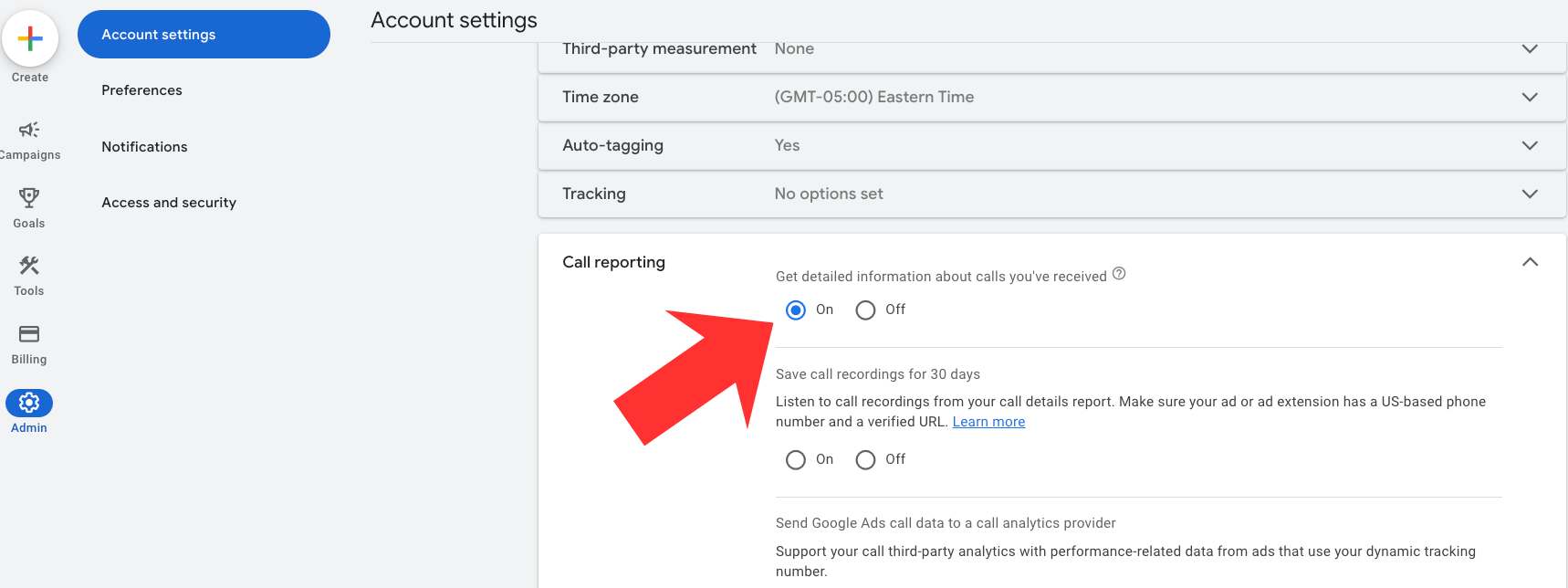
Before setting up any specific conversions, you must enable Call Reporting at the account level:
- Sign in to your Google Ads account.
- Go to Admin (the gear icon).
- Select Account Settings.
- Find Call Reporting and switch it to ON.
This is the foundation that allows Google to track call details like duration and area codes.
Method 1: Tracking Calls Directly from Your Ads (The "Super Easy" Way)
This tracks when someone clicks the phone number directly on your ad (without visiting your website). It works perfectly for Call Extensions or Call-Only ads.
Step-by-Step Setup
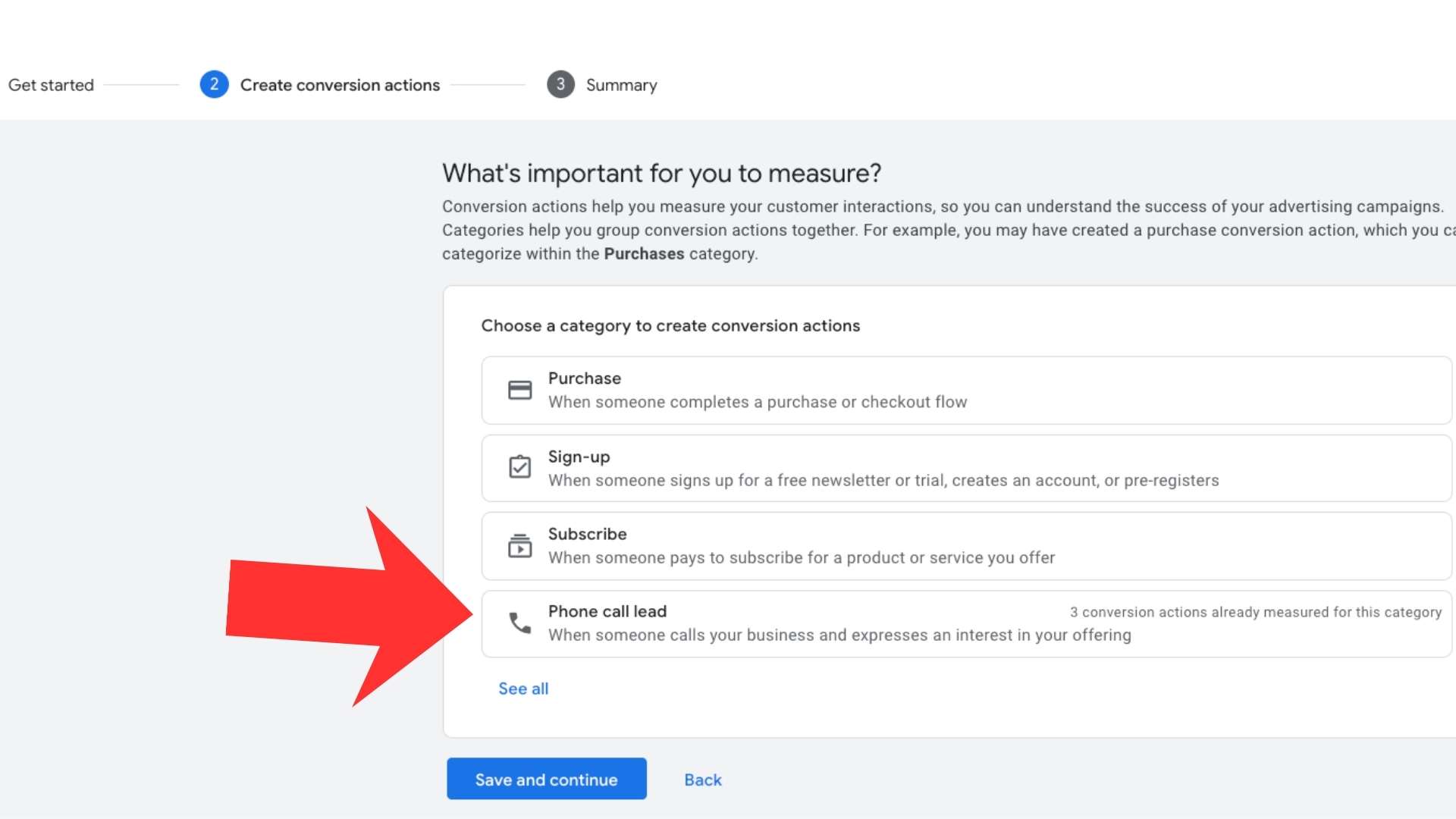
-
Create the Conversion
Go to Goals > Conversions > Summary.
Click + New Conversion Action > Phone Calls.
Select Calls from ads.
-
Critical Settings (Don't Miss This!)
- Goal and Action Optimization: Set this to "Primary" so it counts towards your bidding goals.
- Call Length: PRO TIP: Do not leave this at 1 second! Set this to 60 seconds. This ensures you aren't counting spam calls, wrong numbers, or immediate hang-ups as "Conversions." You only want to tell Google to optimize for quality calls that last long enough to be a real lead.
-
Add the Call Asset
Once the conversion is saved, go to Campaigns > Assets.
Click the + button and choose Call.
Add your phone number here. Tip: Add this at the "Account" level so it automatically applies to all your current and future campaigns.
Method 2: Tracking Calls from Website Clicks (Easy Setup)
This method tracks when someone clicks your phone number after landing on your website. It is easier to set up than dynamic insertion but offers less data (you won't know if the call lasted 1 second or 10 minutes).
Step-by-Step Setup
-
Create the Conversion
Go to Goals > Conversions > Summary > + New Conversion Action.
Select Phone Calls > Clicks on your number on your mobile website.
-
Install the Code
Google will provide a tag to place on your website.
You will need to add a small piece of code (an
onclickevent) to your phone number link.Stuck on the code? If you aren't a developer, copy the instructions Google gives you and paste them into ChatGPT, Gemini, or Claude. Ask the AI: "Here is my website code and here is the Google snippet, exactly where do I paste this?"
Method 3: Dynamic Number Insertion / DNI (Most Robust Data)
This is the "Gold Standard" for free call tracking. Google dynamically swaps the phone number on your website with a Google forwarding number only for visitors who came from an ad. This allows you to track the exact duration of calls from your website visitors.
Step-by-Step Setup
-
Create the Conversion
Go to Goals > Conversions > Summary > + New Conversion Action.
Select Phone Calls > Calls to a phone number on your website.
-
Enter Phone Number Details (Precision Matters!)
- Destination Number: Your actual business phone number.
- Display Number: The number exactly as it appears on your website.
IMPORTANT: The "Display Number" you enter here must match the formatting on your website character-for-character. If your site has
(555) 123-4567and you enter555-123-4567in Google Ads, the code will not work because it looks for that specific text string to replace. -
Install the Code
You will get a "Phone Snippet" code.
Paste this code between the
<head>and</head>tags of your website pages. -
Verify
Once installed, Google will swap your number with a forwarding number for ad traffic. Calls that last longer than your minimum threshold (again, recommend 60 seconds) will show up as conversions in your dashboard.
Summary: For most businesses, I recommend setting up Method 1 (Calls from Ads) immediately as a safety net, and then implementing Method 3 (Dynamic Number Insertion) for the best possible data on your website traffic.
Stop Wasting Money Marketing Your Business Online
Join my email list to get your copy of the Online Marketing Jumpstart PDF!
We hate SPAM. We will never sell your information, for any reason.
Written By:

