How to Use The Content Suitability Section in Google Ads
Have you ever scrolled through a website or a YouTube video and seen an ad for a reputable local business pop up next to something… well, questionable? Maybe it was a heated political debate, a violent news clip, or something just a bit too suggestive.
In those moments, most customers don’t think, "Oh, the algorithm must have placed that there." They think, "Why is this brand supporting this content?" Even if it’s a total accident, your brand’s reputation takes the hit. I’ve seen this firsthand. I once managed a display campaign for a brand where their ads appeared on a site that didn't align with their values at all. They actually had loyal customers reach out to complain and threaten to stop buying from them!
The good news? Google Ads has a built-in "insurance policy" to make sure this doesn’t happen to you. It’s called the Content Suitability section, and today, I’m going to show you how to use it to protect your brand and sharpen your PPC strategy.
What is Content Suitability?
If you are running Video ads, Display ads, or Demand Gen campaigns, your ads are being served across the vast Google Network. Content Suitability is where you tell Google exactly what kind of "neighborhood" you want your ads to live in. It allows you to exclude specific categories, placements, and themes that don't fit your professional image.
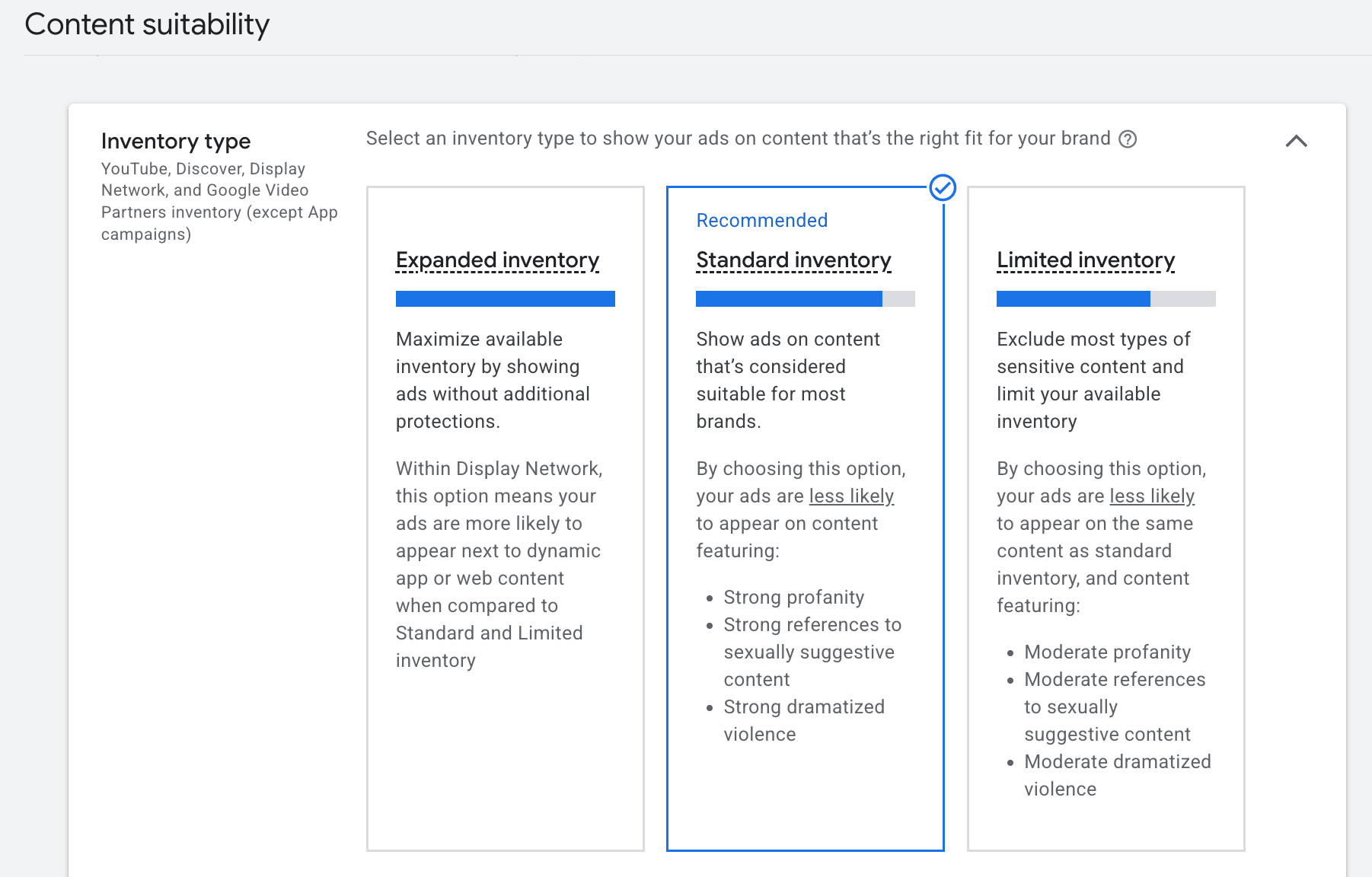
Google gives you three main "quick start" options to define your risk tolerance:
- Expanded Inventory: This is the Wild West. You’ll get the most website traffic growth here, but your ads might show up on content with profanity or sensitive topics.
- Standard Inventory: This is the default. It’s a middle-of-the-road approach that blocks most explicit content.
- Limited Inventory: This is the safest bet. It strictly blocks references to suggestive content and violence. While it might limit your total impressions, I’m a firm believer that those are the impressions you didn't want anyway!
The Pro Approach: Advanced Settings
If you really want to take control of your digital marketing strategies, don’t just stop at the three tiers above. Scroll down to the Advanced Settings. This is where the real magic happens. Here is how I recommend breaking it down:
1. Exclude Sensitive Content
In this section, you can check boxes to opt out of categories like "Tragedy and conflict," "Social sensitive issues," or "Sensational and shocking" content. This ensures your brand isn't accidentally associated with a breaking news tragedy or a controversial social debate.
2. Types and Labels
Think of this like a movie rating system. You can choose to show your ads only on content rated G or PG, and exclude anything rated T or MA. You can also exclude specific content types, like "Parked domains" or "Live streaming videos," which often don't provide the high-quality engagement we're looking for.
3. Content Themes and Keywords
This is a powerful tool most people miss. You can exclude specific themes like "Politics" or "Religion." Even better, you can add Content Keywords. You can upload up to 1,000 specific words; if those words appear in a video’s title or description, your ad stays far away. It’s a surgical way to manage where your Google Ads appear.
4. Specific Placements
If there is a specific YouTube channel or website that you know is a bad fit, you can enter the URL directly into the "Excluded Placements" section. This gives you 100% control over the exact destinations of your ad spend.
Take Control of Your Brand
The Content Suitability section has been around for years, and for good reason: it’s essential for brand safety. Don't let your hard-earned reputation be tarnished by a lazy algorithm. By taking ten minutes to refine these settings, you aren't just protecting your brand—you're ensuring your PPC campaigns are reaching the right people in the right environment.
FAQ
Will using "Limited Inventory" hurt my campaign performance?
Technically, it might lower your total number of impressions because you're telling Google to be pickier. But honestly? You don't want "junk" traffic. I’d rather have 1,000 impressions on high-quality, relevant sites than 5,000 impressions on low-quality pages where your customers are likely to be annoyed by your ad's presence. Quality over quantity always wins in PPC.
Is this something I need to check every day?
Not necessarily every day, but I’d definitely make it part of your monthly account health check. As your brand grows or as cultural trends shift, you might find new keywords or themes you want to exclude. It’s an "insurance policy," and every good policy needs an occasional review!
Does this apply to Search ads too?
This specific section is really focused on the Display Network, YouTube, and Demand Gen. For Search, you’re already controlling things via your keyword list and negative keywords. But for anything visual—where your logo is sitting right next to someone else's content—this section is your best friend.
Ready to clean up your placements? Dive into your Google Ads account today and check your suitability settings. If you need help auditing your current campaigns or want to see how we can drive better website traffic for your business, feel free to reach out. Let’s get those ads appearing exactly where they belong!
Stop Wasting Money Marketing Your Business Online
Join my email list to get your copy of the Online Marketing Jumpstart PDF!
We hate SPAM. We will never sell your information, for any reason.
Written By:

